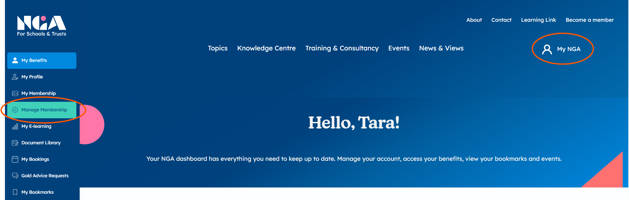
1. Log in to your account using MyNGA in the top right corner of the website. Navigate to Member Management.
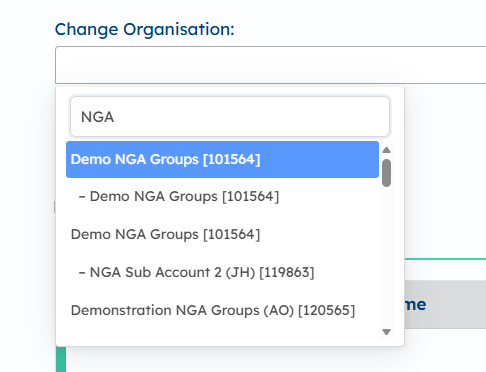
2. Select the organisation you wish to manage. You can type into the top box for speed if you manage multiple organisations.
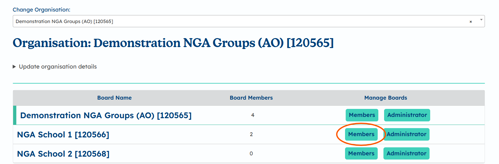
3. Click Members on your selected school.
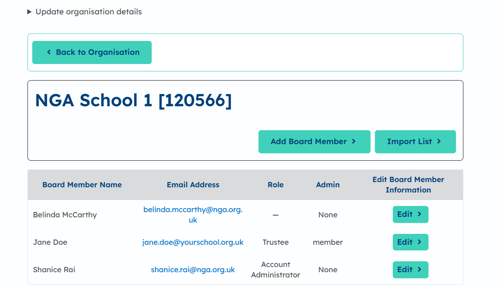
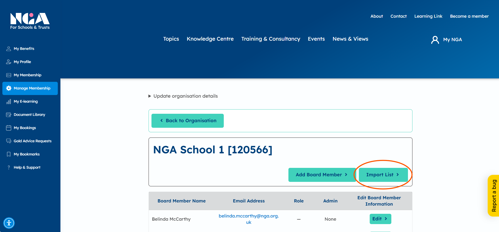
4. Click Import List.
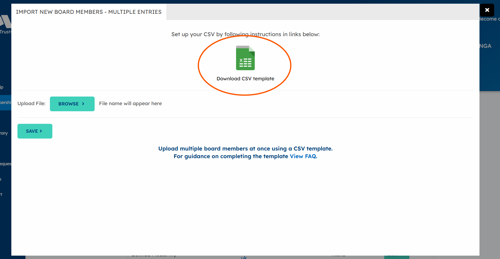
5. Download the template .csv file and populate it with your membership.

IMPORTANT! For the following columns you MUST choose between a specific list of entries or the upload will fail. Ensure there are no spaces or misspellings, as in the reference below:
|
governing_matters |
role |
admin_type |
|
hardcopy |
governor |
none |
|
electronic |
trustee |
full access |
|
accountadministrator |
|
|
|
governanceprofessional |
|
|
|
chair |
||
|
executive |
||
|
headteacher |
|
|
|
other |
||
|
consultant |
|
|
|
ceo |
||
|
coo |
||
|
cfo |
||
|
headofgovernance |
|
6. Once your file is prepared and saved to your computer, upload the file by clicking Browse and then press Save.
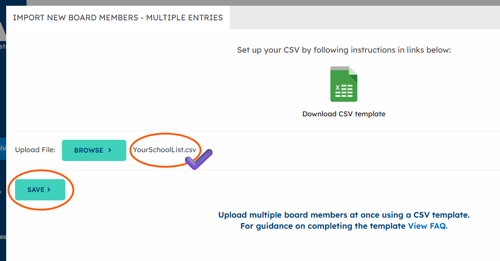
7. You will see confirmation at the top of the page of the number of board members added. Close the pop up box and your new board members will now be visible (you may need to refresh the page)