How do I use the Learning Link platform?
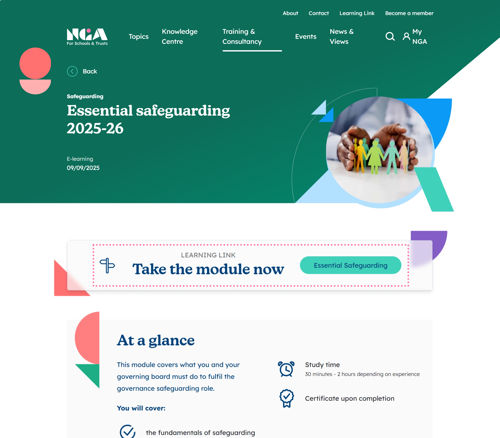
Log in to the NGA website and click Learning Link in the top right to access your training.
Browse or select a module from the Learning Link directory or to explore by topic, click the Filter by topic dropdown and choose a topic. Click on your selected module to go to the module summary page.
Once you’ve found a module, click Take the module now to open the module landing page.
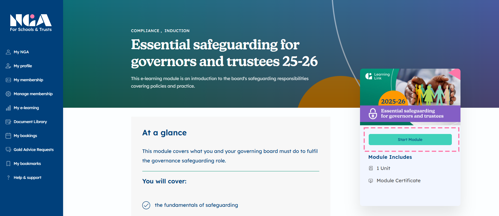
The module landing page is where you can:
- Start the module
- Download your certificate after completion
Click ‘Start Module’ to begin.
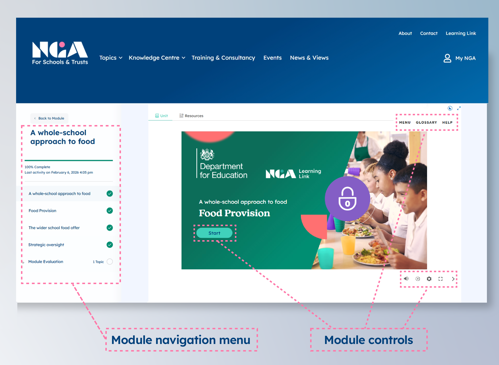
- Use the left-hand menu to move between units
- Use the left and right arrows to navigate through slides
- Use the on-screen controls to pause, replay, or adjust your viewing
Two additional features are available above the module controls:
- Dark mode to reduce screen brightness
- Collapse menu to hide the navigation panel and focus on content
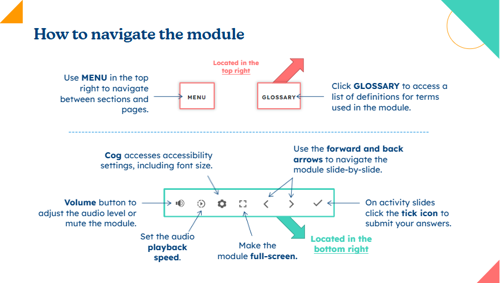
If you need help using the module player, click HELP in the top right to view a quick guide (pictured below), including how to switch to full screen for a better experience on smaller devices.
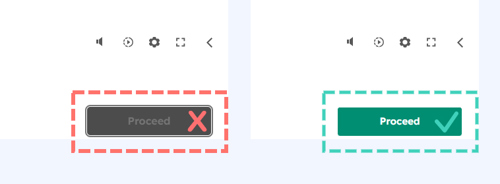
The ‘Proceed’ button in the bottom right of the page will remain grey until you complete the current unit.
Once complete, it will turn green and allow you to continue
To complete the module:
- Work through all units
- Submit the evaluation at the end
The module will only be marked as complete once the evaluation is submitted.
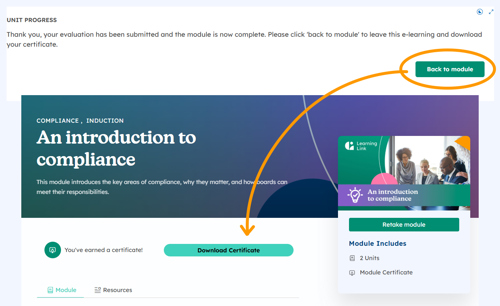
After submitting your evaluation, you will see a confirmation message.
Click Back to module to return to the module landing page, where you can download your certificate.
You can also access your certificates at any time via My E-learning in your MyNGA Dashboard.
If you have any questions or need support, our team is here to help:
- 0121 237 3780
- Enquiry form