How do I allocate and report on the learning for my board(s)?
This guide shows how to manage board members and their e-learning. These options are only visible if you have the right permissions.
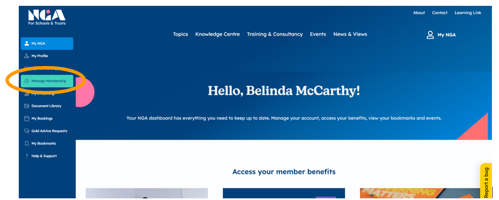
Navigate to your profile area (https://members.nga.org.uk) and click on ‘Manage Membership’.
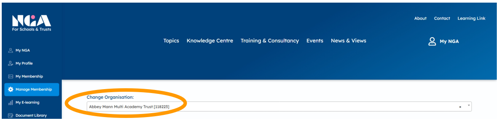
Choose the organisation you want to manage and scroll down.
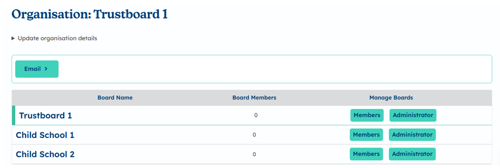
The initial page is the overarching organisation. For individual schools this will only show one school, but for trusts this may show several schools within it, as in the example below.
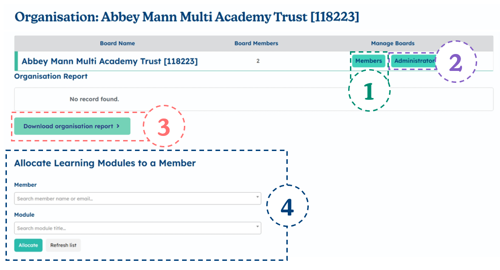
- Members
- Click Members to view and edit details of board members (see below)
- Administrator
- Select “Administrator” to manage who has admin access for the board.
- Export organisation report
- Download a CSV file showing board member training progress and completion data.
- Allocate Learning Modules
- Assign e-learning modules to individual members.
Clicking 1. Members, we will proceed to the board management page for that individual organisation.
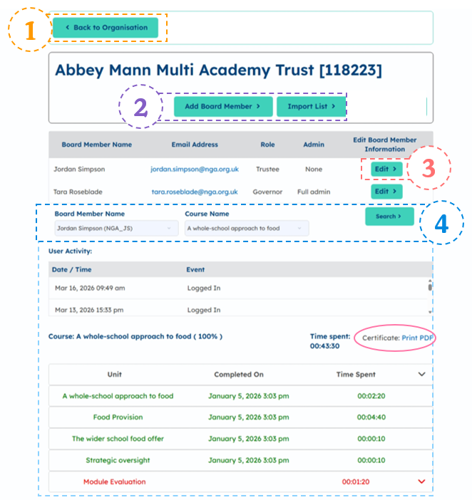
- Back to organisation
- Click to go back to the main organisation page
- Managing board
- Click to add a single board member or import a list of new members
- Edit
- Edit details for existing board members
- Searching for e-learning
- Select a board member from the first dropdown and a module from the second.
- Click “Search” to view that member’s activity and progress for the selected module.
- Download their certificate if completed.
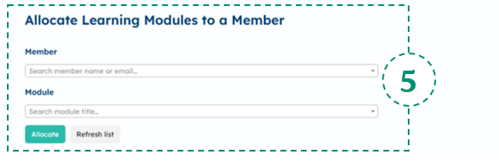
- Allocate Learning Modules
- Select a member and type the name of a module, then click “Allocate” to assign it.
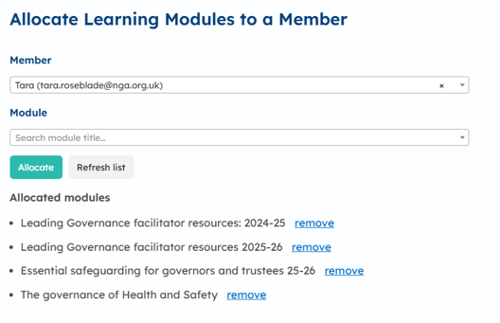
Once a member is selected, any modules already allocated will be shown, with the option to remove them if needed.
You can then assign additional modules by typing them in and then adding to their to-do list.
Once allocated, the module will appear in the user’s profile. Users can access this via “My NGA” (top right), then “My E-learning” in the left-hand menu.